

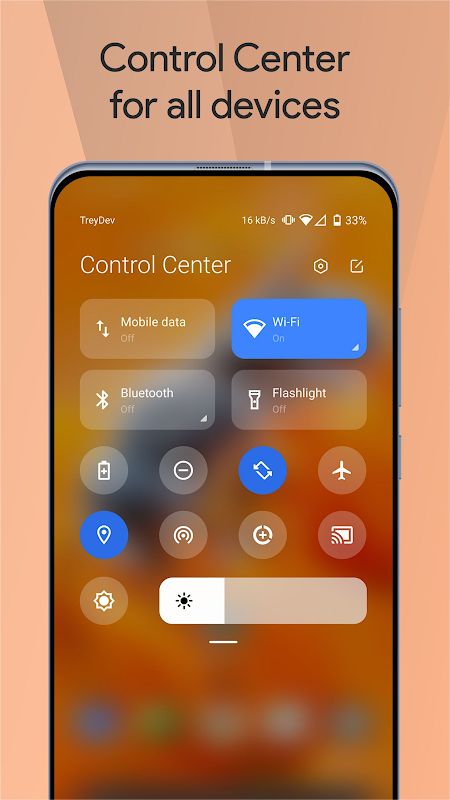
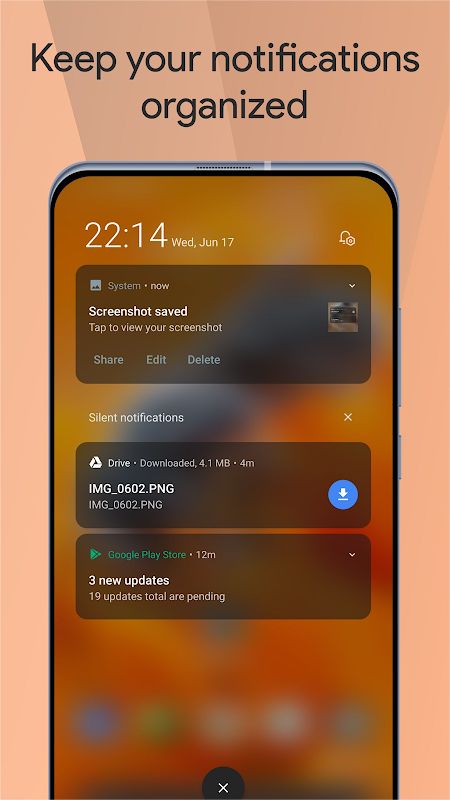
Control Center MOD APK lets you change the way the notification shade and quick settings look on your Android phone. Instead of using the default layout, you can choose different colors, backgrounds, icon shapes, and other visual options. It also puts useful shortcuts within easy reach, including screen recording, screenshots, volume controls, and night mode. If you like adjusting your phone until it feels right for you, Control Center gives you plenty of settings to play around with. The Premium Unlocked version is aimed at users who want access to its paid customization options.
Introduction to Control Center
The standard Android quick settings panel does its job, but you might want something that looks different or gives you easier access to the tools you use every day. Control Center offers another way to organize this part of your phone. You can change the layout, pick a background, and decide how different controls appear when you open the panel.
One useful thing is that you can set up the panel to match your own habits. Keep the shortcuts you use most often nearby and adjust the appearance to suit your taste. You do not need to change your entire phone theme to make a difference, since much of the customization happens in the control center and notification shade.
Access Your Favorite Settings Faster
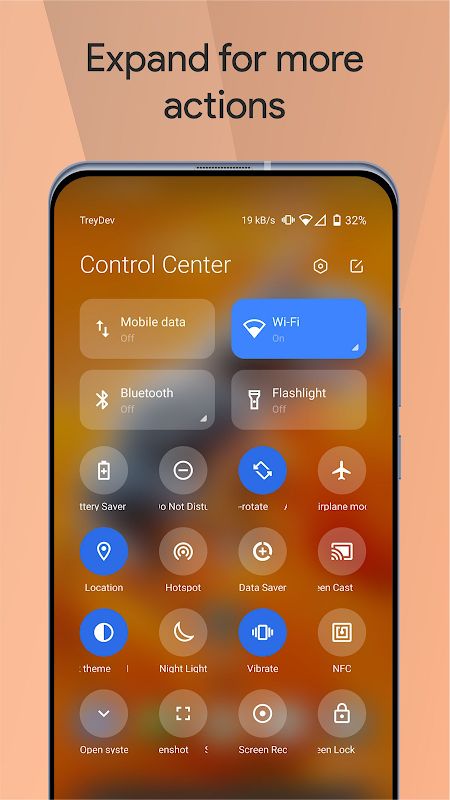
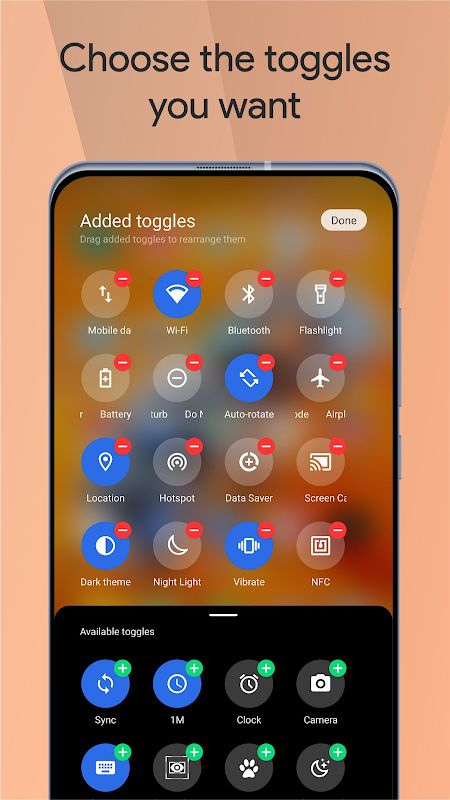
Control Center puts common phone actions in one place, so you do not have to keep opening the Settings app to find them. Depending on your setup and device, you can access options such as the camera, screen recorder, screenshot tool, screen lock, night mode, and volume controls from the panel.
You can also add shortcuts to your favorite applications. This is handy if there are a few apps you open many times a day and want to reach them quickly. The idea is simple: set up the panel once, then use it whenever you need one of those tools. Some actions may work differently depending on your Android version and the permissions you give the app.
Choose Between Different Control Center Layouts
Not everyone likes the same notification panel. Control Center lets you use a combined layout with notifications and quick toggles together, or separate them so each has its own area. With the separate layout, you can swipe down from the left side of the status bar to view notifications and use the right side to open device controls.
The trigger areas can also be adjusted to suit the way you hold and use your phone. This is worth trying if you often open the wrong panel by accident or prefer to keep notifications away from your quick settings. You can experiment with the available options and keep the arrangement that feels easiest to use.
Customize Colors, Icons, and Backgrounds
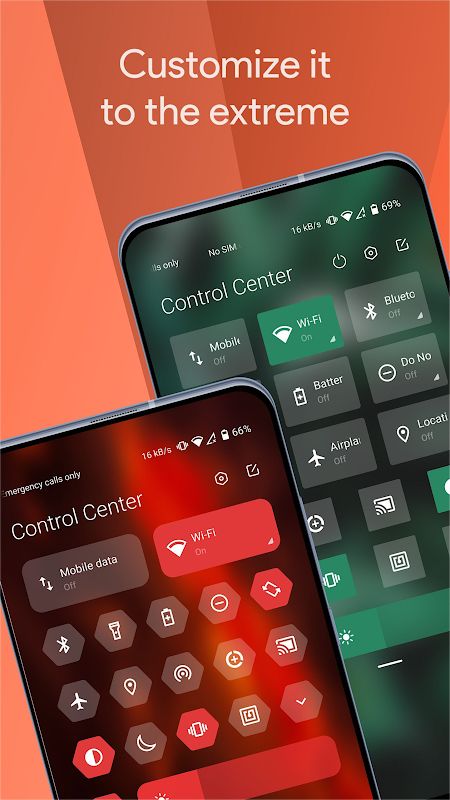
If the default Android panel looks a little plain to you, this is where Control Center gives you more room to experiment. You can change the colors of different elements, choose from several tile shapes, and set a background using a solid color or an image. Depending on the available options, you can also use blur effects and adjust the transparency.
There are small details to change, too. You can select a profile picture to appear in the shade and use icons that display information about your device. If you prefer a simple design, a plain background and a few matching colors may be enough. Or you can try a brighter setup with different shapes and a picture you like. It is up to you how much you want to change.
Manage Notifications and Music Playback
Control Center also includes tools for handling notifications. You can read them from the panel, dismiss messages you no longer need, or snooze supported notifications for later. Notifications from an app that sends too many alerts can be grouped together, making the panel easier to manage when several messages arrive at once.
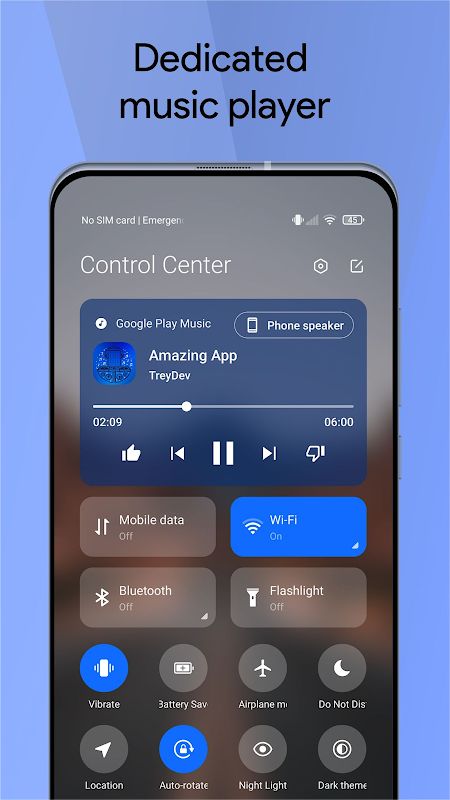
Music controls are another useful addition. The panel can use colors from the current album artwork, and the playback notification includes a progress bar that lets you jump to a different part of a track. Quick reply is available for supported messaging notifications, so you may be able to respond without opening the full app. The exact behavior depends on the app and your Android system.
Adjust Advanced Settings for Your Phone
Control Center includes extra customization options for users who want more control over the final layout. For example, the Pro options include changing the quick settings grid by adjusting the number of rows and columns. This lets you fit the controls you need into a layout that works better for your screen.
The app also uses Accessibility Service to support some of its functions, including detecting touches near the top of the screen and performing certain actions after you choose a setting to toggle. These permissions are important to understand before you enable them. The developer states that the app does not collect personal information through the accessibility service or read sensitive screen data, but you should still review the requested permissions and decide whether you are comfortable granting them.
MOD APK Version of Control Center
MOD Features
- Premium Unlocked
This edition claims to unlock the app’s premium options, including customization tools that are normally marked as Pro. These may include additional control center layout settings, such as changing the grid size.
Download Control Center MOD APK for Android
Want your Android quick settings to look a bit different? Control Center lets you change the panel’s colors, background, icon shapes, and layout while keeping useful shortcuts close at hand. You can also manage notifications and control music playback without leaving the shade. The Premium Unlocked version may provide access to extra customization options, depending on the release. If you want to try it, check that the APK supports your Android version and review its permissions before installing, especially because the app needs accessibility access for some of its main functions.


